Creating a Website
There are two major sections of settings that affect your site; site admin settings and theme settings.
Site admin settings, in general, have more to do with how your website functions. Theme settings deal more with the look and feel of your site, including choosing a banner, title, and accent color (if you want something other than the default garnet).
Here's a checklist of the basic required settings:
Settings Info tab:
- Title of site
- Summary: a short description of your site. Desired format example:
"Faculty site: Andy Morris Fall 2021.
We will use this site to lay out in time and space what we’re learning together this term about Americans’ interactions with their environment over the past few centuries. You’ll be contributing material weekly over the course of the term, and you will also contribute a set of items derived from your “hometown environmental history” research as part of your final project." - Thumbnail: 200px by 200px sized image.
Theme Settings:
- Create a banner and upload it here. It should be around 1280px by 560px in size.
- Banner heading field: put either, "Faculty site" or "Student site".
- Banner description field: put your name and class name. Example: "Andy Morris Fall 2021".
- Please don't change pre-filled out fields, such as the footer. Those are in place for every site created.
CSS Editor:
- An pre-existing style sheet must be selected in this area, in order for your site to look correct.
- Click on the CSS Editor in the dark blue site menu and copy and past this URL in the External Stylesheets field: https://digitalcollections.union.edu/styles/Omeka_Digital-Collections_Freedom-theme_styles.css
Site admin settings
This is an explanation of the different site admin settings. Most of these will come as default when you first create your site.
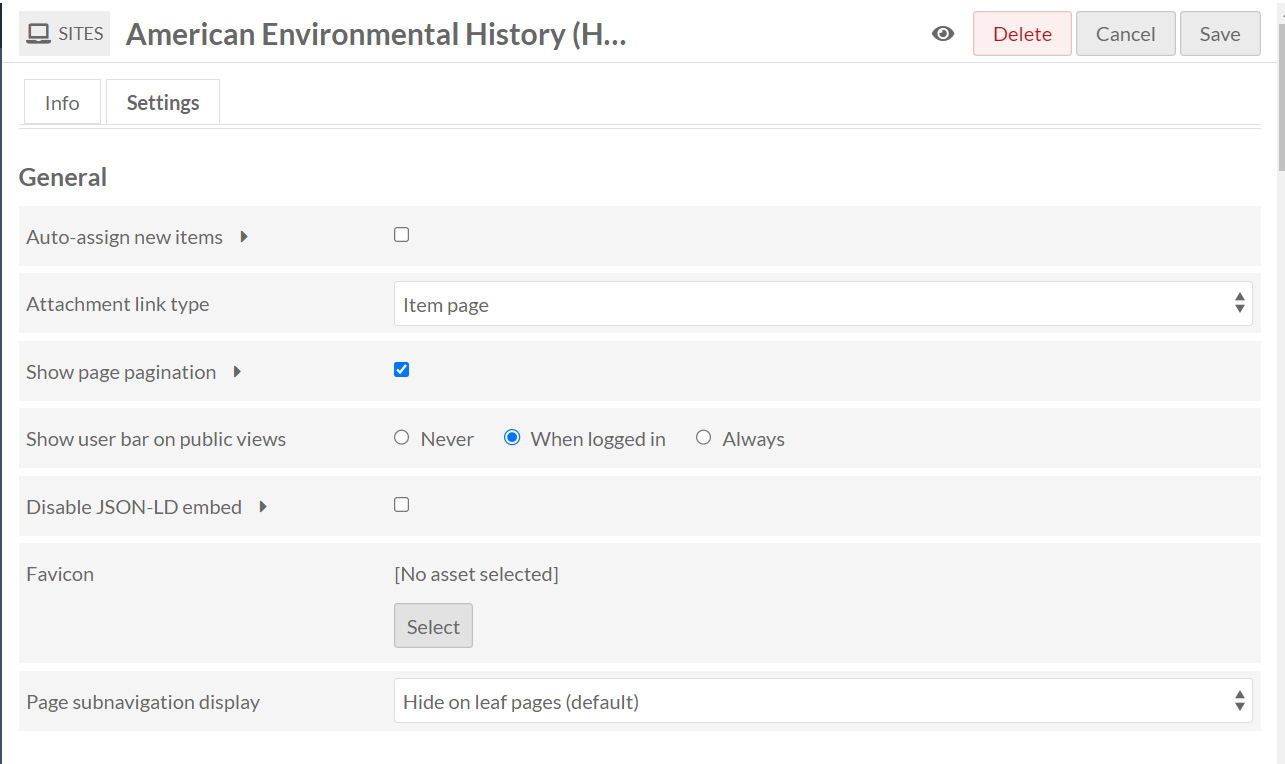
GENERAL
Auto-assign new items:
*IMPORTANT* Keep this unchecked. When it's checked, then any unrelative item that is added OUTSIDE of your site by other users will automatically show up in your site's search. In most cases, you wouldn't want this to happen.
Attachment Link Type:
This controls where the page navigates to when an item is clicked on the webpage. By default, when you click on an item's image, it will take you to the item page, which displays more information about that item. You can also select it to go to the media page or directly to the file, which you might want if you'd like to viewer to only see the media at full scale without metadata.
Show page pagination:
This allows you to navigate from page to page and displays how many pages there are.
Show user bar on public views:
Please keep the default, "When logged in" checked.
Disable JSON-LD embed:
Please keep this unchecked.
Favicon:
This is the little icon that appears in the site's browser tab. The default is already set to the Union Nott Memorial icon.
Page subnavigation display:
The default is "Hide on leaf pages", which means that any subnavigation pages will display a breadcrumb at the top of the page, such as "About > Hours". If you don't want a breadcrumb at the top of the page, select "Hide on all pages". If you select "Show on all pages", you will get an entire navigation displayed on each page (essentially, duplicating the top menu on each main page).
General admin settings
LANGUAGE
Locale:
If your site is geared towards another language, you can select a language other than English here. It won't translate the content of your site, but it will translate the terms within the admin view.
BROWSE
Restrict browse to attached items:
It's reccomended to keep this checked. It means that when a visitor browses your page, they will only see results of items that you have created and put on the site. However, if you want them to discover items that you have created but haven't put on the site's pages yet, you can uncheck this.
Browse heading property:
This is useful if you want to display another peice of information in the metadata as the title, instead of the default title field. For instance, if you want to display your item results as a timeline, you can select the "Date" property and have it sort by date.
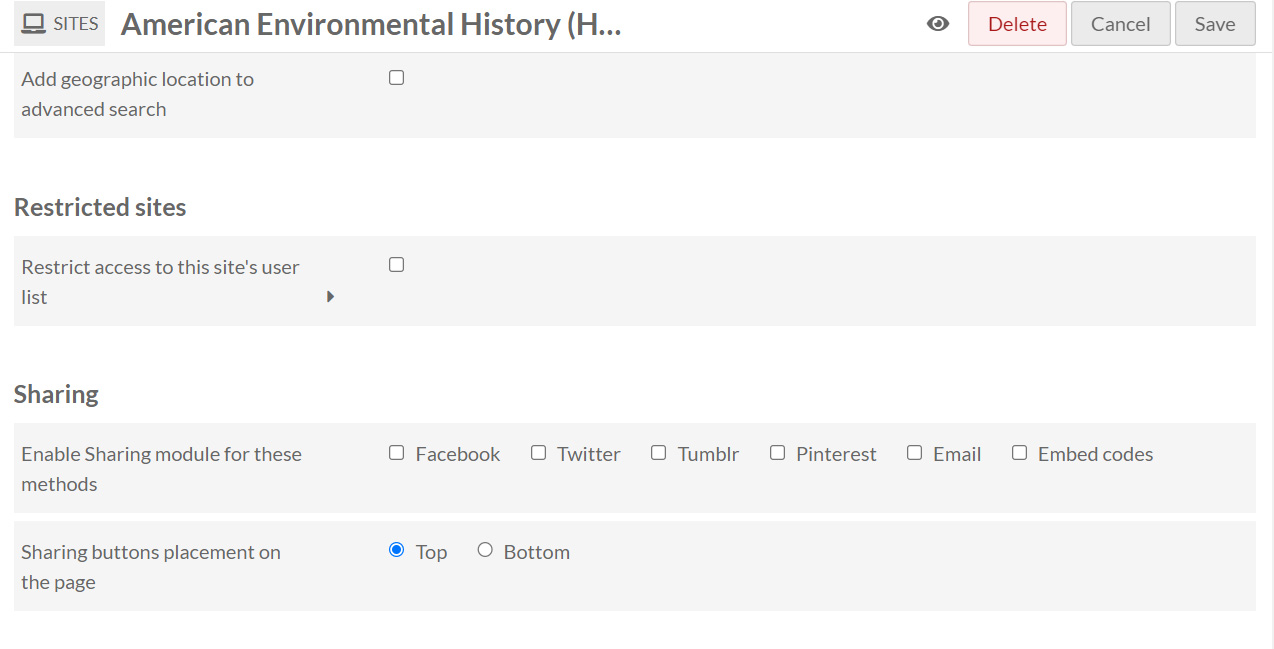
SHARING
If you want the ability to share your site via facebook, email, twitter, tumblr, or Pinterest, you can check the options towards the bottom of the site admin settings page.
Sharing options.
Other Admin Settings
There are many other options on this page that, for the most part, can stay as the default. If you have any questions about the rest of the options, please feel free to contact the Digital Services team at digitalservices@union.edu.
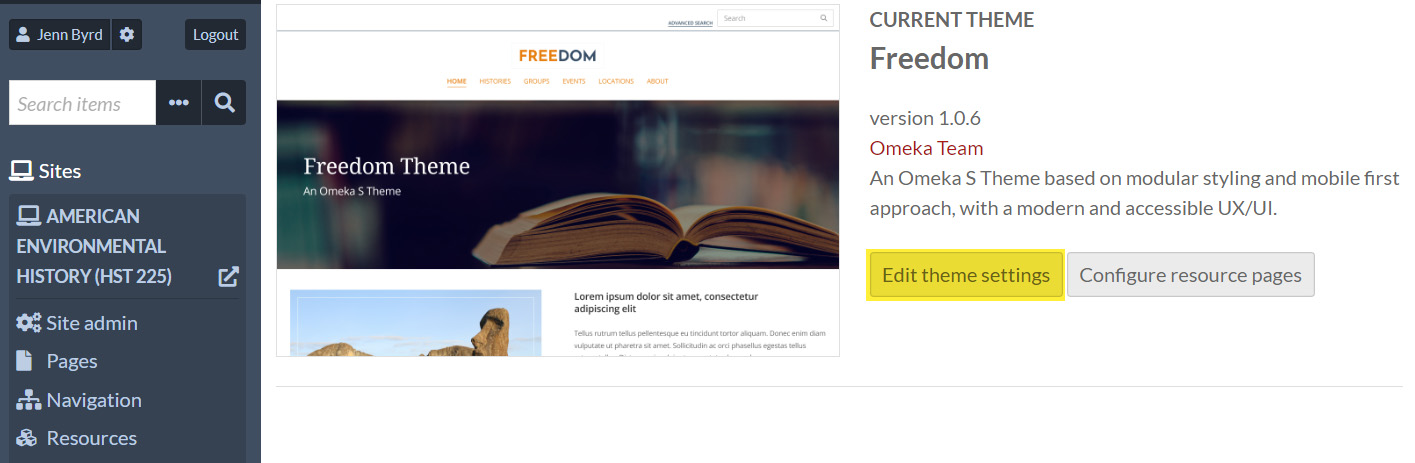
Theme Settings: using "Freedom"
Below are the customizations you can make in the theme settings. Please refraign from changing any other theme settings. Once you make these theme settings, they will apply to all of the individual pages that you create on your site. If you have a question or request to do so, please email digitalservices@union.edu.
Select "Edit Theme Settings" as highlighted under the Freedom theme.
Theme's Primary Color
The default color is Union's official garnet color. You can change this, but please keep in mind it's important to choose a color that is medium to dark. Do NOT choose a light shade. This color you choose will be the site's footer background color, with white text on top. A good contrast is needed for accessiblity.
Pro Tip: Sometimes what's helpful in choosing a color, is to first upload your banner image, and then you can use the color picker to sample a hue on the banner and that will often work well.
Banner
Select a banner, Recommended image size: 1280x560px. Choose an image relavant to the subject matter in your site.